
오늘은 지난 1학기에 논문 세미나를 진행한 논문에 대한 리뷰를 작성해보고자 한다.
해당 논문에 대한 내용 전달보다는 해당 시스템을 직접 실행해보면서 느낀점을 위주로 작성해보고자하니 논문 내용이 궁금하다면 링크로 들어가 논문 내용을 읽어보길 바란다.
시간이 지날수록 LLM의 역할이 점점 더 다양해지고 있다.
LLM이 단순히 텍스트나 표, 이미지 등을 생성하는 도구를 넘어서 행동(Act)를 수행하는 에이전트로 진화하고 있다.
그중에서도 CHI 2025에 게재된 AppAgent: Multimodal Agents as Smartphone Users라는 논문이 이 흐름을 잘 보여주고 있지 않나라고 생각한다.
해당 논문에서는 기존 텍스트 기반 정보에만 의존했던 LLM Agent와 달리 이미지 처리 능력이 추가된 최신 LLM 모델을 바탕으로 사람의 행동을 모방하여 수행하는 LLM Agent를 개발하였다.
🔽 해당 논문 바로 가기
https://dl.acm.org/doi/full/10.1145/3706598.3713600
이 논문 LLM이 "사람처럼 스마트폰을 조작할 수 있을까?" 라는 질문에서 출발한다.
그래서 해당 시스템을 실행시켜보면 정말 사람처럼 수행한다고 느껴진다.
논문에서도 어떤 스마트폰 앱이든 조작할 수 있는 에이전트를 구축하는 것이 주요 도전 과제라고 설명하며 시스템 백엔드 접근과 함수 호출을 통해 동작하는 기존 에이전트와는 다르게 AppAgent의 경우, GUI에서 터치와 스와프 같은 저수준 작업을 사용하여 앱을 제어함으로써 사람처럼 스마트폰 앱과 상호작용하도록 구현하였다고 언급한다.
시스템 백엔드 접근이 불필요하며 GUI 수준에서 작동하기 때문에 앱 인터페이스의 변경이나 업데이트와 상관없이 유연하게 작동할 수 있다는게 해당 시스템의 장점이라고 한다.
Exploration Phase 실행 및 느낀점
그래서 위에서 언급한 목표를 달성하기 위해 논문에서 제시한 핵심 아이디어가 "document-driven few shot learning"이다.
인간이 새로운 앱을 빠르게 배우는 방식에서 영감을 받은 아이디어로, 에이전트는 앱과 상호작용하며 그 결과를 JSON 문서로 기록하고 학습한다.
에이전트는 스크린샷과 XML 정보를 받아, 화면에 어떤 버튼이 있고 어떤 요소가 클릭 가능한지를 스스로 파악한 뒤, 그 결과를 JSON 기반 문서(documentation) 로 기록하면서 학습한다.
이 문서는 이후 Deployment Phase에서 실제 명령을 수행할 때 일종의 “행동 지식 베이스”로 사용된다.
사실 이 논문을 읽을 수록 새로운 어플리케이션 UI 사용성 평가를 제외하곤 어떤 방향으로 해당 기술을 사용할 수 있을지 의문이 들었지만 시스템이 학습하는 Exploration Phase를 실행시켜보는 것은 상당히 재미있었다.
파일을 실행하면 2가지 모드가 뜬다.
| Autonomous Exploration | 에이전트가 스스로 UI를 탐색하며 상호작용. 각 행동의 결과를 문서로 기록 |
| Human Demonstration | 사용자가 직접 조작하면, 에이전트가 이를 관찰하고 문서화함 |
두 모드 모두 목표(Task Description)를 기반으로 진행된다.
예를 들어 이번 실험에서는 다음과 같은 명령을 주었다.
"execute YouTube and search dog video",
"Set an alarm for 12:30 PM every Friday and Sunday"
흠.. XML파일을 기반으로 UI를 인식한다고?
기본적으로 내가 이 시스템에 회의적이게 된 이유는 초반 시작할 때 해당 화면의 xml파일을 받아온다는 점이다.
AppAgent는 실시간 스크린샷과 함께, UI 요소에 대한 세부 정보를 담은 XML 파일을 입력으로 활용한다.

위 사진은 AppAgent가 Autonomous Exploration을 실행한 후에 생성된 파일들의 스크린샷인데 숫자는 turn 순서를 나타내고 before는 해당 턴 실행 전의 스크린샷, after는 해당 턴 실행 후의 스크린샷이다.
그리고 함께 xml 파일이 저장된 것을 볼 수 있다.
파일 내부에는 각 UI 요소의 위치(bounds), 속성(clickable, text, class 등), 계층 구조가 포함되어 있다.
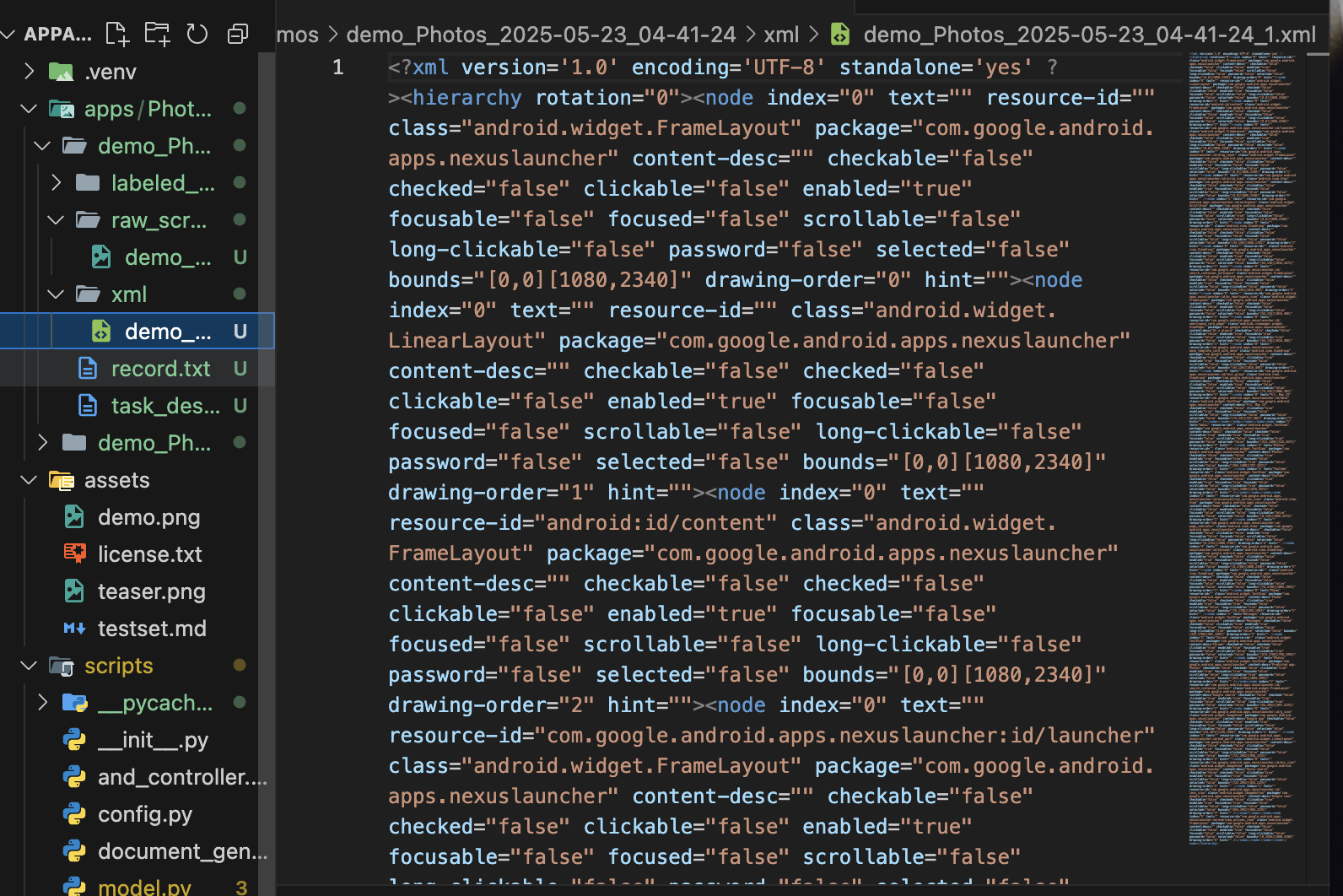
예를 들어,
<node class="android.widget.TextView" text="YouTube" clickable="true" bounds="[811,1400][1016,1672]" /> 이런 식으로 앱 내의 각 뷰(View)가 구체적으로 정의된다.
이를 통해 LLM은 “어떤 요소가 클릭 가능한지”, “이 좌표가 무엇을 의미하는지”를 시스템적으로 파악할 수 있다.
이것을 보고 내가 가졌던 의문은 "UI 내부구조를 이미 알고 잇따면 사실상 LLM이 완전한 시각적 추론을 하는 것은 아닐 수도 있지 않을까?"였다.
즉 논문에서 언급했듯이 사라이 눈으로 보고 판단하듯 시각적으로 행동하는 것이 아니라, 시스템이 이미 제공하는 UI정보에 의존해 조작하는 방식이기 때문에, 'GUI를 직접 이해한다'는 의미의 노벨티가 다소 약해 보였다.
게다가 현재 이 시스템은 아래 명령어로 XML 구조를 손쉽게 덤프해오고 있는데, iOS에서는 이런 구조를 손쉽게 덤프하기 어려운 것으로 알고 있어, 현재 구조로는 안드로이드 환경에 특화된 프레임워크라는 한계도 있어 보인다.
adb shell uiautomator dump
스크린샷 위 라벨 표시
저장된 png 파일 목록을 보면 labeled 라는 표시도 보일 것이다.
AppAgent는 스크린샷을 찍은 후 아래 사진처럼 UI에 라벨을 달아 표시하고 이를 LLM input으로 사용한다.

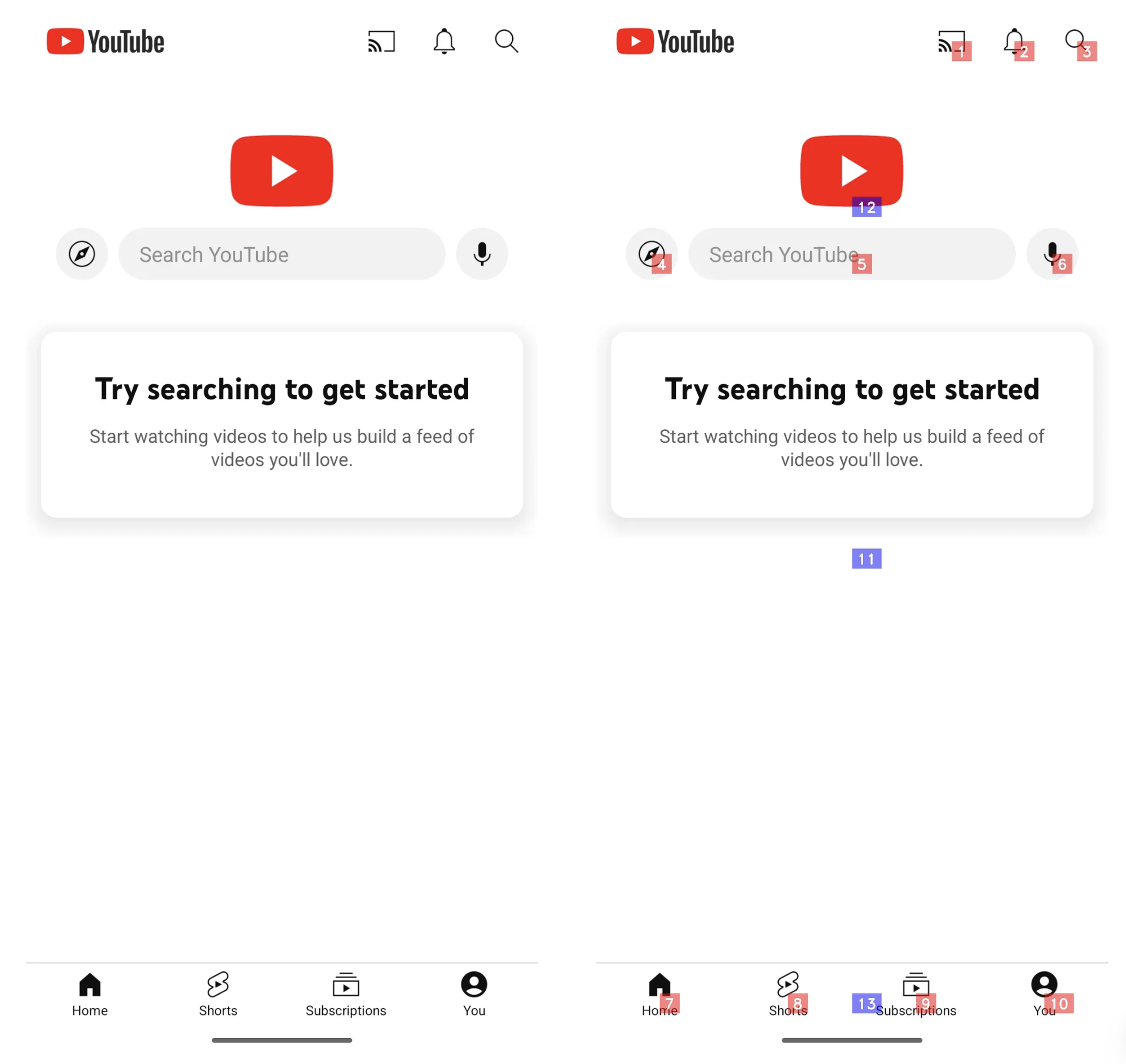
AppAgent는 스크린샷을 단순 저장하는 것이 아니라, 각 UI 요소에 번호(라벨)를 부여해 시각적으로 표시한다.
png 파일을 열어보면 UI의 클릭 가능한 요소마다 숫자가 붙어 있는 걸 볼 수 있다.
예를 들어 YouTube 앱에서는 “홈(1)”, “검색창(2)”, “프로필(3)” 이런 식으로 표시된다.
이 라벨링된 이미지는 LLM의 입력으로 들어가며, 모델은 “tap(5)”, “text(2): dog video”와 같은 형식으로 행동을 추론한다.
이는 단순한 스크린샷이 아니라 행동 가능한 상태 표현(actionable representation) 이라는 점에서 인상적이었다.
그러나 앞서 언급한 XML파일을 기반으로 한 라벨링 문제 때문에 아래 사진처럼 모달창의 경우 라벨링이 되지 않는 문제가 발생하기도 했다.

Explanation Phase 동작 과정
AppAgent는 이러한 input data를 바탕으로 LLM과 상호작용하며 해당 결과를 기록하고 사용자가 명령한 동작을 성공적으로 학습하기 위한 시행착오를 반복하며 학습해 나간다.
지원하는 task 종류는 다음과 같다.
| 유형 | 설명 |
| 앱 실행 | 홈 화면에서 유튜브 앱 실행 |
| 탭 동작 (tap) | 라벨된 UI 요소에 한정 |
| 텍스트 입력 (text) | 검색창에 "dog video" 입력 등 |
| 스크롤 (swipe) | 1차 테스트에서 사용안함 |
| long press | 1차 테스트에서 사용안함 |
| UI 뒤로가기(Back) | 1차 테스트에서 사용안함 |
| 프로세스 종료(Exit) | 1차 테스트에서 사용안함 |
Human Demonstration의 경우 아래처럼 인간과 상호작용하면서 어떻게 동작하는지를 학습하고 JSON을 담은 txt 파일을 생성해낸다.
아래는 실행한 terminal 기록 복사본이다.
Choose one of the following actions you want to perform on the current screen:
tap, text, long press, swipe, stop

tap
Which element do you want to tap? Choose a numeric tag from 1 to 13:

5
Choose one of the following actions you want to perform on the current screen:
tap, text, long press, swipe, stop

tap
Which element do you want to tap? Choose a numeric tag from 1 to 13:

5
Choose one of the following actions you want to perform on the current screen:
tap, text, long press, swipe, stop

text
Which element do you want to input the text string? Choose a numeric tag from 1 to 3:

2
Enter your input text below:

dog video
Choose one of the following actions you want to perform on the current screen:
tap, text, long press, swipe, stop

tap
Which element do you want to tap? Choose a numeric tag from 1 to 6:

5
Choose one of the following actions you want to perform on the current screen:
tap, text, long press, swipe, stop

stop
Demonstration phase completed. 5 steps were recorded.

Autonomous Exploration은 위 과정을 시스템이 LLM과 직접 상호작용하며 진행한다.
아래는 최종결과로 만들어진 text파일 복사본이다.
{"step": 1, "prompt": "You are an agent that is trained to complete certain tasks on a smartphone. You will be \ngiven a screenshot of a smartphone app. The interactive UI elements on the screenshot are labeled with numeric tags \nstarting from 1. \n\nYou can call the following functions to interact with those labeled elements to control the smartphone:\n\n1. tap(element: int)\nThis function is used to tap an UI element shown on the smartphone screen.\n\"element\" is a numeric tag assigned to an UI element shown on the smartphone screen.\nA simple use case can be tap(5), which taps the UI element labeled with the number 5.\n\n2. text(text_input: str)\nThis function is used to insert text input in an input field/box. text_input is the string you want to insert and must \nbe wrapped with double quotation marks. A simple use case can be text(\"Hello, world!\"), which inserts the string \n\"Hello, world!\" into the input area on the smartphone screen. This function is only callable when you see a keyboard \nshowing in the lower half of the screen.\n\n3. long_press(element: int)\nThis function is used to long press an UI element shown on the smartphone screen.\n\"element\" is a numeric tag assigned to an UI element shown on the smartphone screen.\nA simple use case can be long_press(5), which long presses the UI element labeled with the number 5.\n\n4. swipe(element: int, direction: str, dist: str)\nThis function is used to swipe an UI element shown on the smartphone screen, usually a scroll view or a slide bar.\n\"element\" is a numeric tag assigned to an UI element shown on the smartphone screen. \"direction\" is a string that \nrepresents one of the four directions: up, down, left, right. \"direction\" must be wrapped with double quotation \nmarks. \"dist\" determines the distance of the swipe and can be one of the three options: short, medium, long. You should \nchoose the appropriate distance option according to your need.\nA simple use case can be swipe(21, \"up\", \"medium\"), which swipes up the UI element labeled with the number 21 for a \nmedium distance.\n\nThe task you need to complete is to set an alarm at 12:30 pm every Friday and Sunday, disable the vibration. Your past actions to proceed with this task are summarized as \nfollows: None\nNow, given the following labeled screenshot, you need to think and call the function needed to proceed with the task. \nYour output should include three parts in the given format:\nObservation: <Describe what you observe in the image>\nThought: <To complete the given task, what is the next step I should do>\nAction: <The function call with the correct parameters to proceed with the task. If you believe the task is completed or \nthere is nothing to be done, you should output FINISH. You cannot output anything else except a function call or FINISH \nin this field.>\nSummary: <Summarize your past actions along with your latest action in one or two sentences. Do not include the numeric \ntag in your summary>\nYou can only take one action at a time, so please directly call the function.", "image": "1_before_labeled.png", "response": "Observation: The screenshot shows a smartphone home screen with various app icons. The clock app is labeled with the number 9.\n\nThought: To set an alarm, I need to open the clock app.\n\nAction: tap(9)\n\nSummary: I tapped the clock app icon to open it and proceed with setting an alarm."}
{"step": 2, "prompt": "You are an agent that is trained to complete certain tasks on a smartphone. You will be \ngiven a screenshot of a smartphone app. The interactive UI elements on the screenshot are labeled with numeric tags \nstarting from 1. \n\nYou can call the following functions to interact with those labeled elements to control the smartphone:\n\n1. tap(element: int)\nThis function is used to tap an UI element shown on the smartphone screen.\n\"element\" is a numeric tag assigned to an UI element shown on the smartphone screen.\nA simple use case can be tap(5), which taps the UI element labeled with the number 5.\n\n2. text(text_input: str)\nThis function is used to insert text input in an input field/box. text_input is the string you want to insert and must \nbe wrapped with double quotation marks. A simple use case can be text(\"Hello, world!\"), which inserts the string \n\"Hello, world!\" into the input area on the smartphone screen. This function is only callable when you see a keyboard \nshowing in the lower half of the screen.\n\n3. long_press(element: int)\nThis function is used to long press an UI element shown on the smartphone screen.\n\"element\" is a numeric tag assigned to an UI element shown on the smartphone screen.\nA simple use case can be long_press(5), which long presses the UI element labeled with the number 5.\n\n4. swipe(element: int, direction: str, dist: str)\nThis function is used to swipe an UI element shown on the smartphone screen, usually a scroll view or a slide bar.\n\"element\" is a numeric tag assigned to an UI element shown on the smartphone screen. \"direction\" is a string that \nrepresents one of the four directions: up, down, left, right. \"direction\" must be wrapped with double quotation \nmarks. \"dist\" determines the distance of the swipe and can be one of the three options: short, medium, long. You should \nchoose the appropriate distance option according to your need.\nA simple use case can be swipe(21, \"up\", \"medium\"), which swipes up the UI element labeled with the number 21 for a \nmedium distance.\n\nThe task you need to complete is to set an alarm at 12:30 pm every Friday and Sunday, disable the vibration. Your past actions to proceed with this task are summarized as \nfollows: I tapped the clock app icon to open it and proceed with setting an alarm.\nNow, given the following labeled screenshot, you need to think and call the function needed to proceed with the task. \nYour output should include three parts in the given format:\nObservation: <Describe what you observe in the image>\nThought: <To complete the given task, what is the next step I should do>\nAction: <The function call with the correct parameters to proceed with the task. If you believe the task is completed or \nthere is nothing to be done, you should output FINISH. You cannot output anything else except a function call or FINISH \nin this field.>\nSummary: <Summarize your past actions along with your latest action in one or two sentences. Do not include the numeric \ntag in your summary>\nYou can only take one action at a time, so please directly call the function.", "image": "2_before_labeled.png", "response": "Observation: The alarm is set for 12:30 PM on Sunday, Wednesday, Thursday, and Saturday. The vibration option is enabled.\n\nThought: To set the alarm for Friday and Sunday, I need to deselect Wednesday and Thursday, and select Friday. Then, I need to disable the vibration.\n\nAction: tap(14)\n\nSummary: I tapped the clock app icon to open it and proceeded with setting an alarm. I then selected Friday for the alarm."}
{"step": 3, "prompt": "You are an agent that is trained to complete certain tasks on a smartphone. You will be \ngiven a screenshot of a smartphone app. The interactive UI elements on the screenshot are labeled with numeric tags \nstarting from 1. \n\nYou can call the following functions to interact with those labeled elements to control the smartphone:\n\n1. tap(element: int)\nThis function is used to tap an UI element shown on the smartphone screen.\n\"element\" is a numeric tag assigned to an UI element shown on the smartphone screen.\nA simple use case can be tap(5), which taps the UI element labeled with the number 5.\n\n2. text(text_input: str)\nThis function is used to insert text input in an input field/box. text_input is the string you want to insert and must \nbe wrapped with double quotation marks. A simple use case can be text(\"Hello, world!\"), which inserts the string \n\"Hello, world!\" into the input area on the smartphone screen. This function is only callable when you see a keyboard \nshowing in the lower half of the screen.\n\n3. long_press(element: int)\nThis function is used to long press an UI element shown on the smartphone screen.\n\"element\" is a numeric tag assigned to an UI element shown on the smartphone screen.\nA simple use case can be long_press(5), which long presses the UI element labeled with the number 5.\n\n4. swipe(element: int, direction: str, dist: str)\nThis function is used to swipe an UI element shown on the smartphone screen, usually a scroll view or a slide bar.\n\"element\" is a numeric tag assigned to an UI element shown on the smartphone screen. \"direction\" is a string that \nrepresents one of the four directions: up, down, left, right. \"direction\" must be wrapped with double quotation \nmarks. \"dist\" determines the distance of the swipe and can be one of the three options: short, medium, long. You should \nchoose the appropriate distance option according to your need.\nA simple use case can be swipe(21, \"up\", \"medium\"), which swipes up the UI element labeled with the number 21 for a \nmedium distance.\n\nThe task you need to complete is to set an alarm at 12:30 pm every Friday and Sunday, disable the vibration. Your past actions to proceed with this task are summarized as \nfollows: I tapped the clock app icon to open it and proceeded with setting an alarm. I then selected Friday for the alarm.\nNow, given the following labeled screenshot, you need to think and call the function needed to proceed with the task. \nYour output should include three parts in the given format:\nObservation: <Describe what you observe in the image>\nThought: <To complete the given task, what is the next step I should do>\nAction: <The function call with the correct parameters to proceed with the task. If you believe the task is completed or \nthere is nothing to be done, you should output FINISH. You cannot output anything else except a function call or FINISH \nin this field.>\nSummary: <Summarize your past actions along with your latest action in one or two sentences. Do not include the numeric \ntag in your summary>\nYou can only take one action at a time, so please directly call the function.", "image": "3_before_labeled.png", "response": "Observation: The alarm is set for 12:30 PM on Sunday, Wednesday, Thursday, Friday, and Saturday. The vibration option is enabled.\n\nThought: To complete the task, I need to disable the vibration for the alarm.\n\nAction: tap(18)\n\nSummary: I tapped the clock app icon to open it, proceeded with setting an alarm, selected Friday, and then disabled the vibration."}
{"step": 4, "prompt": "You are an agent that is trained to complete certain tasks on a smartphone. You will be \ngiven a screenshot of a smartphone app. The interactive UI elements on the screenshot are labeled with numeric tags \nstarting from 1. \n\nYou can call the following functions to interact with those labeled elements to control the smartphone:\n\n1. tap(element: int)\nThis function is used to tap an UI element shown on the smartphone screen.\n\"element\" is a numeric tag assigned to an UI element shown on the smartphone screen.\nA simple use case can be tap(5), which taps the UI element labeled with the number 5.\n\n2. text(text_input: str)\nThis function is used to insert text input in an input field/box. text_input is the string you want to insert and must \nbe wrapped with double quotation marks. A simple use case can be text(\"Hello, world!\"), which inserts the string \n\"Hello, world!\" into the input area on the smartphone screen. This function is only callable when you see a keyboard \nshowing in the lower half of the screen.\n\n3. long_press(element: int)\nThis function is used to long press an UI element shown on the smartphone screen.\n\"element\" is a numeric tag assigned to an UI element shown on the smartphone screen.\nA simple use case can be long_press(5), which long presses the UI element labeled with the number 5.\n\n4. swipe(element: int, direction: str, dist: str)\nThis function is used to swipe an UI element shown on the smartphone screen, usually a scroll view or a slide bar.\n\"element\" is a numeric tag assigned to an UI element shown on the smartphone screen. \"direction\" is a string that \nrepresents one of the four directions: up, down, left, right. \"direction\" must be wrapped with double quotation \nmarks. \"dist\" determines the distance of the swipe and can be one of the three options: short, medium, long. You should \nchoose the appropriate distance option according to your need.\nA simple use case can be swipe(21, \"up\", \"medium\"), which swipes up the UI element labeled with the number 21 for a \nmedium distance.\n\nThe task you need to complete is to set an alarm at 12:30 pm every Friday and Sunday, disable the vibration. Your past actions to proceed with this task are summarized as \nfollows: I tapped the clock app icon to open it, proceeded with setting an alarm, selected Friday, and then disabled the vibration.\nNow, given the following labeled screenshot, you need to think and call the function needed to proceed with the task. \nYour output should include three parts in the given format:\nObservation: <Describe what you observe in the image>\nThought: <To complete the given task, what is the next step I should do>\nAction: <The function call with the correct parameters to proceed with the task. If you believe the task is completed or \nthere is nothing to be done, you should output FINISH. You cannot output anything else except a function call or FINISH \nin this field.>\nSummary: <Summarize your past actions along with your latest action in one or two sentences. Do not include the numeric \ntag in your summary>\nYou can only take one action at a time, so please directly call the function.", "image": "4_before_labeled.png", "response": "Observation: The alarm is set for 12:30 PM on Sunday, Wednesday, Thursday, Friday, and Saturday. Vibration is disabled. The days of the week are selectable.\n\nThought: To complete the task, I need to deselect Wednesday and Thursday, leaving only Friday and Sunday selected.\n\nAction: tap(11)\n\nSummary: I tapped the clock app icon to open it, proceeded with setting an alarm, selected Friday, disabled the vibration, and deselected Wednesday."}
{"step": 5, "prompt": "You are an agent that is trained to complete certain tasks on a smartphone. You will be \ngiven a screenshot of a smartphone app. The interactive UI elements on the screenshot are labeled with numeric tags \nstarting from 1. \n\nYou can call the following functions to interact with those labeled elements to control the smartphone:\n\n1. tap(element: int)\nThis function is used to tap an UI element shown on the smartphone screen.\n\"element\" is a numeric tag assigned to an UI element shown on the smartphone screen.\nA simple use case can be tap(5), which taps the UI element labeled with the number 5.\n\n2. text(text_input: str)\nThis function is used to insert text input in an input field/box. text_input is the string you want to insert and must \nbe wrapped with double quotation marks. A simple use case can be text(\"Hello, world!\"), which inserts the string \n\"Hello, world!\" into the input area on the smartphone screen. This function is only callable when you see a keyboard \nshowing in the lower half of the screen.\n\n3. long_press(element: int)\nThis function is used to long press an UI element shown on the smartphone screen.\n\"element\" is a numeric tag assigned to an UI element shown on the smartphone screen.\nA simple use case can be long_press(5), which long presses the UI element labeled with the number 5.\n\n4. swipe(element: int, direction: str, dist: str)\nThis function is used to swipe an UI element shown on the smartphone screen, usually a scroll view or a slide bar.\n\"element\" is a numeric tag assigned to an UI element shown on the smartphone screen. \"direction\" is a string that \nrepresents one of the four directions: up, down, left, right. \"direction\" must be wrapped with double quotation \nmarks. \"dist\" determines the distance of the swipe and can be one of the three options: short, medium, long. You should \nchoose the appropriate distance option according to your need.\nA simple use case can be swipe(21, \"up\", \"medium\"), which swipes up the UI element labeled with the number 21 for a \nmedium distance.\n\nThe task you need to complete is to set an alarm at 12:30 pm every Friday and Sunday, disable the vibration. Your past actions to proceed with this task are summarized as \nfollows: None\nNow, given the following labeled screenshot, you need to think and call the function needed to proceed with the task. \nYour output should include three parts in the given format:\nObservation: <Describe what you observe in the image>\nThought: <To complete the given task, what is the next step I should do>\nAction: <The function call with the correct parameters to proceed with the task. If you believe the task is completed or \nthere is nothing to be done, you should output FINISH. You cannot output anything else except a function call or FINISH \nin this field.>\nSummary: <Summarize your past actions along with your latest action in one or two sentences. Do not include the numeric \ntag in your summary>\nYou can only take one action at a time, so please directly call the function.", "image": "5_before_labeled.png", "response": "Observation: The screen shows an alarm set for 12:30 PM on Sunday, Tuesday, Wednesday, Thursday, Friday, and Saturday. The vibration option is enabled.\n\nThought: To set the alarm for Friday and Sunday only, I need to disable the other days. I will start by disabling Tuesday.\n\nAction: tap(11)\n\nSummary: I tapped to disable the alarm on Tuesday, leaving it set for Sunday, Wednesday, Thursday, Friday, and Saturday."}
{"step": 6, "prompt": "You are an agent that is trained to complete certain tasks on a smartphone. You will be \ngiven a screenshot of a smartphone app. The interactive UI elements on the screenshot are labeled with numeric tags \nstarting from 1. \n\nYou can call the following functions to interact with those labeled elements to control the smartphone:\n\n1. tap(element: int)\nThis function is used to tap an UI element shown on the smartphone screen.\n\"element\" is a numeric tag assigned to an UI element shown on the smartphone screen.\nA simple use case can be tap(5), which taps the UI element labeled with the number 5.\n\n2. text(text_input: str)\nThis function is used to insert text input in an input field/box. text_input is the string you want to insert and must \nbe wrapped with double quotation marks. A simple use case can be text(\"Hello, world!\"), which inserts the string \n\"Hello, world!\" into the input area on the smartphone screen. This function is only callable when you see a keyboard \nshowing in the lower half of the screen.\n\n3. long_press(element: int)\nThis function is used to long press an UI element shown on the smartphone screen.\n\"element\" is a numeric tag assigned to an UI element shown on the smartphone screen.\nA simple use case can be long_press(5), which long presses the UI element labeled with the number 5.\n\n4. swipe(element: int, direction: str, dist: str)\nThis function is used to swipe an UI element shown on the smartphone screen, usually a scroll view or a slide bar.\n\"element\" is a numeric tag assigned to an UI element shown on the smartphone screen. \"direction\" is a string that \nrepresents one of the four directions: up, down, left, right. \"direction\" must be wrapped with double quotation \nmarks. \"dist\" determines the distance of the swipe and can be one of the three options: short, medium, long. You should \nchoose the appropriate distance option according to your need.\nA simple use case can be swipe(21, \"up\", \"medium\"), which swipes up the UI element labeled with the number 21 for a \nmedium distance.\n\nThe task you need to complete is to set an alarm at 12:30 pm every Friday and Sunday, disable the vibration. Your past actions to proceed with this task are summarized as \nfollows: None\nNow, given the following labeled screenshot, you need to think and call the function needed to proceed with the task. \nYour output should include three parts in the given format:\nObservation: <Describe what you observe in the image>\nThought: <To complete the given task, what is the next step I should do>\nAction: <The function call with the correct parameters to proceed with the task. If you believe the task is completed or \nthere is nothing to be done, you should output FINISH. You cannot output anything else except a function call or FINISH \nin this field.>\nSummary: <Summarize your past actions along with your latest action in one or two sentences. Do not include the numeric \ntag in your summary>\nYou can only take one action at a time, so please directly call the function.", "image": "6_before_labeled.png", "response": "Observation: The alarm is set for 12:30 PM on Sunday, Tuesday, Thursday, Friday, and Saturday. The vibration option is enabled.\n\nThought: To set the alarm for Friday and Sunday only, I need to deselect Tuesday, Thursday, and Saturday.\n\nAction: tap(10)\n\nSummary: I tapped to deselect Tuesday from the alarm schedule."}
{"step": 7, "prompt": "You are an agent that is trained to complete certain tasks on a smartphone. You will be \ngiven a screenshot of a smartphone app. The interactive UI elements on the screenshot are labeled with numeric tags \nstarting from 1. \n\nYou can call the following functions to interact with those labeled elements to control the smartphone:\n\n1. tap(element: int)\nThis function is used to tap an UI element shown on the smartphone screen.\n\"element\" is a numeric tag assigned to an UI element shown on the smartphone screen.\nA simple use case can be tap(5), which taps the UI element labeled with the number 5.\n\n2. text(text_input: str)\nThis function is used to insert text input in an input field/box. text_input is the string you want to insert and must \nbe wrapped with double quotation marks. A simple use case can be text(\"Hello, world!\"), which inserts the string \n\"Hello, world!\" into the input area on the smartphone screen. This function is only callable when you see a keyboard \nshowing in the lower half of the screen.\n\n3. long_press(element: int)\nThis function is used to long press an UI element shown on the smartphone screen.\n\"element\" is a numeric tag assigned to an UI element shown on the smartphone screen.\nA simple use case can be long_press(5), which long presses the UI element labeled with the number 5.\n\n4. swipe(element: int, direction: str, dist: str)\nThis function is used to swipe an UI element shown on the smartphone screen, usually a scroll view or a slide bar.\n\"element\" is a numeric tag assigned to an UI element shown on the smartphone screen. \"direction\" is a string that \nrepresents one of the four directions: up, down, left, right. \"direction\" must be wrapped with double quotation \nmarks. \"dist\" determines the distance of the swipe and can be one of the three options: short, medium, long. You should \nchoose the appropriate distance option according to your need.\nA simple use case can be swipe(21, \"up\", \"medium\"), which swipes up the UI element labeled with the number 21 for a \nmedium distance.\n\nThe task you need to complete is to set an alarm at 12:30 pm every Friday and Sunday, disable the vibration. Your past actions to proceed with this task are summarized as \nfollows: I tapped to deselect Tuesday from the alarm schedule.\nNow, given the following labeled screenshot, you need to think and call the function needed to proceed with the task. \nYour output should include three parts in the given format:\nObservation: <Describe what you observe in the image>\nThought: <To complete the given task, what is the next step I should do>\nAction: <The function call with the correct parameters to proceed with the task. If you believe the task is completed or \nthere is nothing to be done, you should output FINISH. You cannot output anything else except a function call or FINISH \nin this field.>\nSummary: <Summarize your past actions along with your latest action in one or two sentences. Do not include the numeric \ntag in your summary>\nYou can only take one action at a time, so please directly call the function.", "image": "7_before_labeled.png", "response": "Observation: The alarm is set for 12:30 PM on Sunday, Monday, Tuesday, Thursday, Friday, and Saturday. The vibration option is enabled.\n\nThought: To complete the task, I need to disable the vibration option.\n\nAction: tap(16)\n\nSummary: I tapped to deselect Tuesday from the alarm schedule and then disabled the vibration option."}
{"step": 8, "prompt": "You are an agent that is trained to complete certain tasks on a smartphone. You will be \ngiven a screenshot of a smartphone app. The interactive UI elements on the screenshot are labeled with numeric tags \nstarting from 1. \n\nYou can call the following functions to interact with those labeled elements to control the smartphone:\n\n1. tap(element: int)\nThis function is used to tap an UI element shown on the smartphone screen.\n\"element\" is a numeric tag assigned to an UI element shown on the smartphone screen.\nA simple use case can be tap(5), which taps the UI element labeled with the number 5.\n\n2. text(text_input: str)\nThis function is used to insert text input in an input field/box. text_input is the string you want to insert and must \nbe wrapped with double quotation marks. A simple use case can be text(\"Hello, world!\"), which inserts the string \n\"Hello, world!\" into the input area on the smartphone screen. This function is only callable when you see a keyboard \nshowing in the lower half of the screen.\n\n3. long_press(element: int)\nThis function is used to long press an UI element shown on the smartphone screen.\n\"element\" is a numeric tag assigned to an UI element shown on the smartphone screen.\nA simple use case can be long_press(5), which long presses the UI element labeled with the number 5.\n\n4. swipe(element: int, direction: str, dist: str)\nThis function is used to swipe an UI element shown on the smartphone screen, usually a scroll view or a slide bar.\n\"element\" is a numeric tag assigned to an UI element shown on the smartphone screen. \"direction\" is a string that \nrepresents one of the four directions: up, down, left, right. \"direction\" must be wrapped with double quotation \nmarks. \"dist\" determines the distance of the swipe and can be one of the three options: short, medium, long. You should \nchoose the appropriate distance option according to your need.\nA simple use case can be swipe(21, \"up\", \"medium\"), which swipes up the UI element labeled with the number 21 for a \nmedium distance.\n\nThe task you need to complete is to set an alarm at 12:30 pm every Friday and Sunday, disable the vibration. Your past actions to proceed with this task are summarized as \nfollows: None\nNow, given the following labeled screenshot, you need to think and call the function needed to proceed with the task. \nYour output should include three parts in the given format:\nObservation: <Describe what you observe in the image>\nThought: <To complete the given task, what is the next step I should do>\nAction: <The function call with the correct parameters to proceed with the task. If you believe the task is completed or \nthere is nothing to be done, you should output FINISH. You cannot output anything else except a function call or FINISH \nin this field.>\nSummary: <Summarize your past actions along with your latest action in one or two sentences. Do not include the numeric \ntag in your summary>\nYou can only take one action at a time, so please directly call the function.", "image": "8_before_labeled.png", "response": "Observation: The screen shows an alarm set for 12:30 PM on Sunday, Monday, Tuesday, Thursday, Friday, and Saturday. The vibration option is enabled.\n\nThought: To set the alarm for Friday and Sunday only, I need to deselect Monday, Tuesday, Thursday, and Saturday.\n\nAction: tap(10)\n\nSummary: I tapped to deselect Monday from the alarm schedule."}
{"step": 9, "prompt": "You are an agent that is trained to complete certain tasks on a smartphone. You will be \ngiven a screenshot of a smartphone app. The interactive UI elements on the screenshot are labeled with numeric tags \nstarting from 1. \n\nYou can call the following functions to interact with those labeled elements to control the smartphone:\n\n1. tap(element: int)\nThis function is used to tap an UI element shown on the smartphone screen.\n\"element\" is a numeric tag assigned to an UI element shown on the smartphone screen.\nA simple use case can be tap(5), which taps the UI element labeled with the number 5.\n\n2. text(text_input: str)\nThis function is used to insert text input in an input field/box. text_input is the string you want to insert and must \nbe wrapped with double quotation marks. A simple use case can be text(\"Hello, world!\"), which inserts the string \n\"Hello, world!\" into the input area on the smartphone screen. This function is only callable when you see a keyboard \nshowing in the lower half of the screen.\n\n3. long_press(element: int)\nThis function is used to long press an UI element shown on the smartphone screen.\n\"element\" is a numeric tag assigned to an UI element shown on the smartphone screen.\nA simple use case can be long_press(5), which long presses the UI element labeled with the number 5.\n\n4. swipe(element: int, direction: str, dist: str)\nThis function is used to swipe an UI element shown on the smartphone screen, usually a scroll view or a slide bar.\n\"element\" is a numeric tag assigned to an UI element shown on the smartphone screen. \"direction\" is a string that \nrepresents one of the four directions: up, down, left, right. \"direction\" must be wrapped with double quotation \nmarks. \"dist\" determines the distance of the swipe and can be one of the three options: short, medium, long. You should \nchoose the appropriate distance option according to your need.\nA simple use case can be swipe(21, \"up\", \"medium\"), which swipes up the UI element labeled with the number 21 for a \nmedium distance.\n\nThe task you need to complete is to set an alarm at 12:30 pm every Friday and Sunday, disable the vibration. Your past actions to proceed with this task are summarized as \nfollows: I tapped to deselect Monday from the alarm schedule.\nNow, given the following labeled screenshot, you need to think and call the function needed to proceed with the task. \nYour output should include three parts in the given format:\nObservation: <Describe what you observe in the image>\nThought: <To complete the given task, what is the next step I should do>\nAction: <The function call with the correct parameters to proceed with the task. If you believe the task is completed or \nthere is nothing to be done, you should output FINISH. You cannot output anything else except a function call or FINISH \nin this field.>\nSummary: <Summarize your past actions along with your latest action in one or two sentences. Do not include the numeric \ntag in your summary>\nYou can only take one action at a time, so please directly call the function.", "image": "9_before_labeled.png", "response": "Observation: The alarm is set for 12:30 PM on Sunday, Tuesday, Thursday, Friday, and Saturday. The vibration option is enabled.\n\nThought: To complete the task, I need to disable the vibration option.\n\nAction: tap(8)\n\nSummary: I tapped to deselect Monday from the alarm schedule and then disabled the vibration option."}
{"step": 10, "prompt": "You are an agent that is trained to complete certain tasks on a smartphone. You will be \ngiven a screenshot of a smartphone app. The interactive UI elements on the screenshot are labeled with numeric tags \nstarting from 1. \n\nYou can call the following functions to interact with those labeled elements to control the smartphone:\n\n1. tap(element: int)\nThis function is used to tap an UI element shown on the smartphone screen.\n\"element\" is a numeric tag assigned to an UI element shown on the smartphone screen.\nA simple use case can be tap(5), which taps the UI element labeled with the number 5.\n\n2. text(text_input: str)\nThis function is used to insert text input in an input field/box. text_input is the string you want to insert and must \nbe wrapped with double quotation marks. A simple use case can be text(\"Hello, world!\"), which inserts the string \n\"Hello, world!\" into the input area on the smartphone screen. This function is only callable when you see a keyboard \nshowing in the lower half of the screen.\n\n3. long_press(element: int)\nThis function is used to long press an UI element shown on the smartphone screen.\n\"element\" is a numeric tag assigned to an UI element shown on the smartphone screen.\nA simple use case can be long_press(5), which long presses the UI element labeled with the number 5.\n\n4. swipe(element: int, direction: str, dist: str)\nThis function is used to swipe an UI element shown on the smartphone screen, usually a scroll view or a slide bar.\n\"element\" is a numeric tag assigned to an UI element shown on the smartphone screen. \"direction\" is a string that \nrepresents one of the four directions: up, down, left, right. \"direction\" must be wrapped with double quotation \nmarks. \"dist\" determines the distance of the swipe and can be one of the three options: short, medium, long. You should \nchoose the appropriate distance option according to your need.\nA simple use case can be swipe(21, \"up\", \"medium\"), which swipes up the UI element labeled with the number 21 for a \nmedium distance.\n\nThe task you need to complete is to set an alarm at 12:30 pm every Friday and Sunday, disable the vibration. Your past actions to proceed with this task are summarized as \nfollows: None\nNow, given the following labeled screenshot, you need to think and call the function needed to proceed with the task. \nYour output should include three parts in the given format:\nObservation: <Describe what you observe in the image>\nThought: <To complete the given task, what is the next step I should do>\nAction: <The function call with the correct parameters to proceed with the task. If you believe the task is completed or \nthere is nothing to be done, you should output FINISH. You cannot output anything else except a function call or FINISH \nin this field.>\nSummary: <Summarize your past actions along with your latest action in one or two sentences. Do not include the numeric \ntag in your summary>\nYou can only take one action at a time, so please directly call the function.", "image": "10_before_labeled.png", "response": "Observation: The alarm is set for 12:30 PM on Sunday, Tuesday, Thursday, Friday, and Saturday. Vibration is enabled.\n\nThought: To set the alarm for Friday and Sunday only, I need to deselect Tuesday, Thursday, and Saturday. I'll start by deselecting Tuesday.\n\nAction: tap(9)\n\nSummary: I tapped to deselect Tuesday from the alarm schedule."}
{"step": 11, "prompt": "You are an agent that is trained to complete certain tasks on a smartphone. You will be \ngiven a screenshot of a smartphone app. The interactive UI elements on the screenshot are labeled with numeric tags \nstarting from 1. \n\nYou can call the following functions to interact with those labeled elements to control the smartphone:\n\n1. tap(element: int)\nThis function is used to tap an UI element shown on the smartphone screen.\n\"element\" is a numeric tag assigned to an UI element shown on the smartphone screen.\nA simple use case can be tap(5), which taps the UI element labeled with the number 5.\n\n2. text(text_input: str)\nThis function is used to insert text input in an input field/box. text_input is the string you want to insert and must \nbe wrapped with double quotation marks. A simple use case can be text(\"Hello, world!\"), which inserts the string \n\"Hello, world!\" into the input area on the smartphone screen. This function is only callable when you see a keyboard \nshowing in the lower half of the screen.\n\n3. long_press(element: int)\nThis function is used to long press an UI element shown on the smartphone screen.\n\"element\" is a numeric tag assigned to an UI element shown on the smartphone screen.\nA simple use case can be long_press(5), which long presses the UI element labeled with the number 5.\n\n4. swipe(element: int, direction: str, dist: str)\nThis function is used to swipe an UI element shown on the smartphone screen, usually a scroll view or a slide bar.\n\"element\" is a numeric tag assigned to an UI element shown on the smartphone screen. \"direction\" is a string that \nrepresents one of the four directions: up, down, left, right. \"direction\" must be wrapped with double quotation \nmarks. \"dist\" determines the distance of the swipe and can be one of the three options: short, medium, long. You should \nchoose the appropriate distance option according to your need.\nA simple use case can be swipe(21, \"up\", \"medium\"), which swipes up the UI element labeled with the number 21 for a \nmedium distance.\n\nThe task you need to complete is to set an alarm at 12:30 pm every Friday and Sunday, disable the vibration. Your past actions to proceed with this task are summarized as \nfollows: None\nNow, given the following labeled screenshot, you need to think and call the function needed to proceed with the task. \nYour output should include three parts in the given format:\nObservation: <Describe what you observe in the image>\nThought: <To complete the given task, what is the next step I should do>\nAction: <The function call with the correct parameters to proceed with the task. If you believe the task is completed or \nthere is nothing to be done, you should output FINISH. You cannot output anything else except a function call or FINISH \nin this field.>\nSummary: <Summarize your past actions along with your latest action in one or two sentences. Do not include the numeric \ntag in your summary>\nYou can only take one action at a time, so please directly call the function.", "image": "11_before_labeled.png", "response": "Observation: The alarm is set for 12:30 PM on Sunday, Monday, Tuesday, Thursday, Friday, and Saturday. The vibration option is enabled.\n\nThought: To set the alarm for Friday and Sunday only, I need to deselect Monday, Tuesday, Thursday, and Saturday. I will start by deselecting Monday.\n\nAction: tap(8)\n\nSummary: I observed that the alarm is set for multiple days, including Monday. I tapped to deselect Monday."}
{"step": 12, "prompt": "You are an agent that is trained to complete certain tasks on a smartphone. You will be \ngiven a screenshot of a smartphone app. The interactive UI elements on the screenshot are labeled with numeric tags \nstarting from 1. \n\nYou can call the following functions to interact with those labeled elements to control the smartphone:\n\n1. tap(element: int)\nThis function is used to tap an UI element shown on the smartphone screen.\n\"element\" is a numeric tag assigned to an UI element shown on the smartphone screen.\nA simple use case can be tap(5), which taps the UI element labeled with the number 5.\n\n2. text(text_input: str)\nThis function is used to insert text input in an input field/box. text_input is the string you want to insert and must \nbe wrapped with double quotation marks. A simple use case can be text(\"Hello, world!\"), which inserts the string \n\"Hello, world!\" into the input area on the smartphone screen. This function is only callable when you see a keyboard \nshowing in the lower half of the screen.\n\n3. long_press(element: int)\nThis function is used to long press an UI element shown on the smartphone screen.\n\"element\" is a numeric tag assigned to an UI element shown on the smartphone screen.\nA simple use case can be long_press(5), which long presses the UI element labeled with the number 5.\n\n4. swipe(element: int, direction: str, dist: str)\nThis function is used to swipe an UI element shown on the smartphone screen, usually a scroll view or a slide bar.\n\"element\" is a numeric tag assigned to an UI element shown on the smartphone screen. \"direction\" is a string that \nrepresents one of the four directions: up, down, left, right. \"direction\" must be wrapped with double quotation \nmarks. \"dist\" determines the distance of the swipe and can be one of the three options: short, medium, long. You should \nchoose the appropriate distance option according to your need.\nA simple use case can be swipe(21, \"up\", \"medium\"), which swipes up the UI element labeled with the number 21 for a \nmedium distance.\n\nThe task you need to complete is to set an alarm at 12:30 pm every Friday and Sunday, disable the vibration. Your past actions to proceed with this task are summarized as \nfollows: I observed that the alarm is set for multiple days, including Monday. I tapped to deselect Monday.\nNow, given the following labeled screenshot, you need to think and call the function needed to proceed with the task. \nYour output should include three parts in the given format:\nObservation: <Describe what you observe in the image>\nThought: <To complete the given task, what is the next step I should do>\nAction: <The function call with the correct parameters to proceed with the task. If you believe the task is completed or \nthere is nothing to be done, you should output FINISH. You cannot output anything else except a function call or FINISH \nin this field.>\nSummary: <Summarize your past actions along with your latest action in one or two sentences. Do not include the numeric \ntag in your summary>\nYou can only take one action at a time, so please directly call the function.", "image": "12_before_labeled.png", "response": "Observation: The alarm is set for multiple days: Monday, Tuesday, Thursday, Friday, and Saturday. The vibration option is enabled.\n\nThought: To complete the task, I need to deselect Tuesday and Thursday, and disable the vibration.\n\nAction: tap(9)\n\nSummary: I deselected Monday. Now, I have deselected Tuesday to set the alarm for Friday and Sunday only."}
{"step": 13, "prompt": "You are an agent that is trained to complete certain tasks on a smartphone. You will be \ngiven a screenshot of a smartphone app. The interactive UI elements on the screenshot are labeled with numeric tags \nstarting from 1. \n\nYou can call the following functions to interact with those labeled elements to control the smartphone:\n\n1. tap(element: int)\nThis function is used to tap an UI element shown on the smartphone screen.\n\"element\" is a numeric tag assigned to an UI element shown on the smartphone screen.\nA simple use case can be tap(5), which taps the UI element labeled with the number 5.\n\n2. text(text_input: str)\nThis function is used to insert text input in an input field/box. text_input is the string you want to insert and must \nbe wrapped with double quotation marks. A simple use case can be text(\"Hello, world!\"), which inserts the string \n\"Hello, world!\" into the input area on the smartphone screen. This function is only callable when you see a keyboard \nshowing in the lower half of the screen.\n\n3. long_press(element: int)\nThis function is used to long press an UI element shown on the smartphone screen.\n\"element\" is a numeric tag assigned to an UI element shown on the smartphone screen.\nA simple use case can be long_press(5), which long presses the UI element labeled with the number 5.\n\n4. swipe(element: int, direction: str, dist: str)\nThis function is used to swipe an UI element shown on the smartphone screen, usually a scroll view or a slide bar.\n\"element\" is a numeric tag assigned to an UI element shown on the smartphone screen. \"direction\" is a string that \nrepresents one of the four directions: up, down, left, right. \"direction\" must be wrapped with double quotation \nmarks. \"dist\" determines the distance of the swipe and can be one of the three options: short, medium, long. You should \nchoose the appropriate distance option according to your need.\nA simple use case can be swipe(21, \"up\", \"medium\"), which swipes up the UI element labeled with the number 21 for a \nmedium distance.\n\nThe task you need to complete is to set an alarm at 12:30 pm every Friday and Sunday, disable the vibration. Your past actions to proceed with this task are summarized as \nfollows: I deselected Monday. Now, I have deselected Tuesday to set the alarm for Friday and Sunday only.\nNow, given the following labeled screenshot, you need to think and call the function needed to proceed with the task. \nYour output should include three parts in the given format:\nObservation: <Describe what you observe in the image>\nThought: <To complete the given task, what is the next step I should do>\nAction: <The function call with the correct parameters to proceed with the task. If you believe the task is completed or \nthere is nothing to be done, you should output FINISH. You cannot output anything else except a function call or FINISH \nin this field.>\nSummary: <Summarize your past actions along with your latest action in one or two sentences. Do not include the numeric \ntag in your summary>\nYou can only take one action at a time, so please directly call the function.", "image": "13_before_labeled.png", "response": "Observation: The alarm is set for 12:30 PM on Monday, Tuesday, Friday, and Saturday. The vibration option is enabled.\n\nThought: To complete the task, I need to disable the vibration option.\n\nAction: tap(13)\n\nSummary: I deselected Monday and Tuesday to set the alarm for Friday and Sunday only. Now, I have disabled the vibration option."}
{"step": 14, "prompt": "You are an agent that is trained to complete certain tasks on a smartphone. You will be \ngiven a screenshot of a smartphone app. The interactive UI elements on the screenshot are labeled with numeric tags \nstarting from 1. \n\nYou can call the following functions to interact with those labeled elements to control the smartphone:\n\n1. tap(element: int)\nThis function is used to tap an UI element shown on the smartphone screen.\n\"element\" is a numeric tag assigned to an UI element shown on the smartphone screen.\nA simple use case can be tap(5), which taps the UI element labeled with the number 5.\n\n2. text(text_input: str)\nThis function is used to insert text input in an input field/box. text_input is the string you want to insert and must \nbe wrapped with double quotation marks. A simple use case can be text(\"Hello, world!\"), which inserts the string \n\"Hello, world!\" into the input area on the smartphone screen. This function is only callable when you see a keyboard \nshowing in the lower half of the screen.\n\n3. long_press(element: int)\nThis function is used to long press an UI element shown on the smartphone screen.\n\"element\" is a numeric tag assigned to an UI element shown on the smartphone screen.\nA simple use case can be long_press(5), which long presses the UI element labeled with the number 5.\n\n4. swipe(element: int, direction: str, dist: str)\nThis function is used to swipe an UI element shown on the smartphone screen, usually a scroll view or a slide bar.\n\"element\" is a numeric tag assigned to an UI element shown on the smartphone screen. \"direction\" is a string that \nrepresents one of the four directions: up, down, left, right. \"direction\" must be wrapped with double quotation \nmarks. \"dist\" determines the distance of the swipe and can be one of the three options: short, medium, long. You should \nchoose the appropriate distance option according to your need.\nA simple use case can be swipe(21, \"up\", \"medium\"), which swipes up the UI element labeled with the number 21 for a \nmedium distance.\n\nThe task you need to complete is to set an alarm at 12:30 pm every Friday and Sunday, disable the vibration. Your past actions to proceed with this task are summarized as \nfollows: None\nNow, given the following labeled screenshot, you need to think and call the function needed to proceed with the task. \nYour output should include three parts in the given format:\nObservation: <Describe what you observe in the image>\nThought: <To complete the given task, what is the next step I should do>\nAction: <The function call with the correct parameters to proceed with the task. If you believe the task is completed or \nthere is nothing to be done, you should output FINISH. You cannot output anything else except a function call or FINISH \nin this field.>\nSummary: <Summarize your past actions along with your latest action in one or two sentences. Do not include the numeric \ntag in your summary>\nYou can only take one action at a time, so please directly call the function.", "image": "14_before_labeled.png", "response": "```plaintext\nObservation: The screen shows the \"Alarm sound\" settings with options to select different sounds. There is a back button labeled 1.\nThought: To set the alarm, I need to go back to the main alarm settings screen.\nAction: tap(1)\nSummary: I tapped the back button to return to the main alarm settings screen to continue setting the alarm.\n```"}
{"step": 15, "prompt": "You are an agent that is trained to complete certain tasks on a smartphone. You will be \ngiven a screenshot of a smartphone app. The interactive UI elements on the screenshot are labeled with numeric tags \nstarting from 1. \n\nYou can call the following functions to interact with those labeled elements to control the smartphone:\n\n1. tap(element: int)\nThis function is used to tap an UI element shown on the smartphone screen.\n\"element\" is a numeric tag assigned to an UI element shown on the smartphone screen.\nA simple use case can be tap(5), which taps the UI element labeled with the number 5.\n\n2. text(text_input: str)\nThis function is used to insert text input in an input field/box. text_input is the string you want to insert and must \nbe wrapped with double quotation marks. A simple use case can be text(\"Hello, world!\"), which inserts the string \n\"Hello, world!\" into the input area on the smartphone screen. This function is only callable when you see a keyboard \nshowing in the lower half of the screen.\n\n3. long_press(element: int)\nThis function is used to long press an UI element shown on the smartphone screen.\n\"element\" is a numeric tag assigned to an UI element shown on the smartphone screen.\nA simple use case can be long_press(5), which long presses the UI element labeled with the number 5.\n\n4. swipe(element: int, direction: str, dist: str)\nThis function is used to swipe an UI element shown on the smartphone screen, usually a scroll view or a slide bar.\n\"element\" is a numeric tag assigned to an UI element shown on the smartphone screen. \"direction\" is a string that \nrepresents one of the four directions: up, down, left, right. \"direction\" must be wrapped with double quotation \nmarks. \"dist\" determines the distance of the swipe and can be one of the three options: short, medium, long. You should \nchoose the appropriate distance option according to your need.\nA simple use case can be swipe(21, \"up\", \"medium\"), which swipes up the UI element labeled with the number 21 for a \nmedium distance.\n\nThe task you need to complete is to set an alarm at 12:30 pm every Friday and Sunday, disable the vibration. Your past actions to proceed with this task are summarized as \nfollows: I tapped the back button to return to the main alarm settings screen to continue setting the alarm.\nNow, given the following labeled screenshot, you need to think and call the function needed to proceed with the task. \nYour output should include three parts in the given format:\nObservation: <Describe what you observe in the image>\nThought: <To complete the given task, what is the next step I should do>\nAction: <The function call with the correct parameters to proceed with the task. If you believe the task is completed or \nthere is nothing to be done, you should output FINISH. You cannot output anything else except a function call or FINISH \nin this field.>\nSummary: <Summarize your past actions along with your latest action in one or two sentences. Do not include the numeric \ntag in your summary>\nYou can only take one action at a time, so please directly call the function.", "image": "15_before_labeled.png", "response": "Observation: The alarm is set for 12:30 PM on Monday, Tuesday, Friday, and Saturday. The vibration option is enabled.\n\nThought: To complete the task, I need to disable the vibration option.\n\nAction: tap(12)\n\nSummary: I tapped the back button to return to the main alarm settings screen and then disabled the vibration option for the alarm."}
{"step": 16, "prompt": "You are an agent that is trained to complete certain tasks on a smartphone. You will be \ngiven a screenshot of a smartphone app. The interactive UI elements on the screenshot are labeled with numeric tags \nstarting from 1. \n\nYou can call the following functions to interact with those labeled elements to control the smartphone:\n\n1. tap(element: int)\nThis function is used to tap an UI element shown on the smartphone screen.\n\"element\" is a numeric tag assigned to an UI element shown on the smartphone screen.\nA simple use case can be tap(5), which taps the UI element labeled with the number 5.\n\n2. text(text_input: str)\nThis function is used to insert text input in an input field/box. text_input is the string you want to insert and must \nbe wrapped with double quotation marks. A simple use case can be text(\"Hello, world!\"), which inserts the string \n\"Hello, world!\" into the input area on the smartphone screen. This function is only callable when you see a keyboard \nshowing in the lower half of the screen.\n\n3. long_press(element: int)\nThis function is used to long press an UI element shown on the smartphone screen.\n\"element\" is a numeric tag assigned to an UI element shown on the smartphone screen.\nA simple use case can be long_press(5), which long presses the UI element labeled with the number 5.\n\n4. swipe(element: int, direction: str, dist: str)\nThis function is used to swipe an UI element shown on the smartphone screen, usually a scroll view or a slide bar.\n\"element\" is a numeric tag assigned to an UI element shown on the smartphone screen. \"direction\" is a string that \nrepresents one of the four directions: up, down, left, right. \"direction\" must be wrapped with double quotation \nmarks. \"dist\" determines the distance of the swipe and can be one of the three options: short, medium, long. You should \nchoose the appropriate distance option according to your need.\nA simple use case can be swipe(21, \"up\", \"medium\"), which swipes up the UI element labeled with the number 21 for a \nmedium distance.\n\nThe task you need to complete is to set an alarm at 12:30 pm every Friday and Sunday, disable the vibration. Your past actions to proceed with this task are summarized as \nfollows: None\nNow, given the following labeled screenshot, you need to think and call the function needed to proceed with the task. \nYour output should include three parts in the given format:\nObservation: <Describe what you observe in the image>\nThought: <To complete the given task, what is the next step I should do>\nAction: <The function call with the correct parameters to proceed with the task. If you believe the task is completed or \nthere is nothing to be done, you should output FINISH. You cannot output anything else except a function call or FINISH \nin this field.>\nSummary: <Summarize your past actions along with your latest action in one or two sentences. Do not include the numeric \ntag in your summary>\nYou can only take one action at a time, so please directly call the function.", "image": "16_before_labeled.png", "response": "Observation: The alarm is set for 12:30 PM on Monday, Tuesday, Friday, and Saturday. The vibration option is enabled.\n\nThought: To set the alarm for Friday and Sunday, I need to deselect Monday and Tuesday, and select Sunday. Then, I need to disable the vibration.\n\nAction: tap(8)\n\nSummary: I tapped to deselect Monday from the alarm settings."}
{"step": 17, "prompt": "You are an agent that is trained to complete certain tasks on a smartphone. You will be \ngiven a screenshot of a smartphone app. The interactive UI elements on the screenshot are labeled with numeric tags \nstarting from 1. \n\nYou can call the following functions to interact with those labeled elements to control the smartphone:\n\n1. tap(element: int)\nThis function is used to tap an UI element shown on the smartphone screen.\n\"element\" is a numeric tag assigned to an UI element shown on the smartphone screen.\nA simple use case can be tap(5), which taps the UI element labeled with the number 5.\n\n2. text(text_input: str)\nThis function is used to insert text input in an input field/box. text_input is the string you want to insert and must \nbe wrapped with double quotation marks. A simple use case can be text(\"Hello, world!\"), which inserts the string \n\"Hello, world!\" into the input area on the smartphone screen. This function is only callable when you see a keyboard \nshowing in the lower half of the screen.\n\n3. long_press(element: int)\nThis function is used to long press an UI element shown on the smartphone screen.\n\"element\" is a numeric tag assigned to an UI element shown on the smartphone screen.\nA simple use case can be long_press(5), which long presses the UI element labeled with the number 5.\n\n4. swipe(element: int, direction: str, dist: str)\nThis function is used to swipe an UI element shown on the smartphone screen, usually a scroll view or a slide bar.\n\"element\" is a numeric tag assigned to an UI element shown on the smartphone screen. \"direction\" is a string that \nrepresents one of the four directions: up, down, left, right. \"direction\" must be wrapped with double quotation \nmarks. \"dist\" determines the distance of the swipe and can be one of the three options: short, medium, long. You should \nchoose the appropriate distance option according to your need.\nA simple use case can be swipe(21, \"up\", \"medium\"), which swipes up the UI element labeled with the number 21 for a \nmedium distance.\n\nThe task you need to complete is to set an alarm at 12:30 pm every Friday and Sunday, disable the vibration. Your past actions to proceed with this task are summarized as \nfollows: I tapped to deselect Monday from the alarm settings.\nNow, given the following labeled screenshot, you need to think and call the function needed to proceed with the task. \nYour output should include three parts in the given format:\nObservation: <Describe what you observe in the image>\nThought: <To complete the given task, what is the next step I should do>\nAction: <The function call with the correct parameters to proceed with the task. If you believe the task is completed or \nthere is nothing to be done, you should output FINISH. You cannot output anything else except a function call or FINISH \nin this field.>\nSummary: <Summarize your past actions along with your latest action in one or two sentences. Do not include the numeric \ntag in your summary>\nYou can only take one action at a time, so please directly call the function.", "image": "17_before_labeled.png", "response": "```plaintext\nObservation: The alarm is set for 12:30 PM on Sunday, Monday, Tuesday, Friday, and Saturday. The vibration option is enabled.\nThought: To complete the task, I need to disable the vibration option.\nAction: tap(6)\nSummary: I tapped to deselect Monday from the alarm settings and then disabled the vibration option.\n```"}
{"step": 18, "prompt": "You are an agent that is trained to complete certain tasks on a smartphone. You will be \ngiven a screenshot of a smartphone app. The interactive UI elements on the screenshot are labeled with numeric tags \nstarting from 1. \n\nYou can call the following functions to interact with those labeled elements to control the smartphone:\n\n1. tap(element: int)\nThis function is used to tap an UI element shown on the smartphone screen.\n\"element\" is a numeric tag assigned to an UI element shown on the smartphone screen.\nA simple use case can be tap(5), which taps the UI element labeled with the number 5.\n\n2. text(text_input: str)\nThis function is used to insert text input in an input field/box. text_input is the string you want to insert and must \nbe wrapped with double quotation marks. A simple use case can be text(\"Hello, world!\"), which inserts the string \n\"Hello, world!\" into the input area on the smartphone screen. This function is only callable when you see a keyboard \nshowing in the lower half of the screen.\n\n3. long_press(element: int)\nThis function is used to long press an UI element shown on the smartphone screen.\n\"element\" is a numeric tag assigned to an UI element shown on the smartphone screen.\nA simple use case can be long_press(5), which long presses the UI element labeled with the number 5.\n\n4. swipe(element: int, direction: str, dist: str)\nThis function is used to swipe an UI element shown on the smartphone screen, usually a scroll view or a slide bar.\n\"element\" is a numeric tag assigned to an UI element shown on the smartphone screen. \"direction\" is a string that \nrepresents one of the four directions: up, down, left, right. \"direction\" must be wrapped with double quotation \nmarks. \"dist\" determines the distance of the swipe and can be one of the three options: short, medium, long. You should \nchoose the appropriate distance option according to your need.\nA simple use case can be swipe(21, \"up\", \"medium\"), which swipes up the UI element labeled with the number 21 for a \nmedium distance.\n\nThe task you need to complete is to set an alarm at 12:30 pm every Friday and Sunday, disable the vibration. Your past actions to proceed with this task are summarized as \nfollows: None\nNow, given the following labeled screenshot, you need to think and call the function needed to proceed with the task. \nYour output should include three parts in the given format:\nObservation: <Describe what you observe in the image>\nThought: <To complete the given task, what is the next step I should do>\nAction: <The function call with the correct parameters to proceed with the task. If you believe the task is completed or \nthere is nothing to be done, you should output FINISH. You cannot output anything else except a function call or FINISH \nin this field.>\nSummary: <Summarize your past actions along with your latest action in one or two sentences. Do not include the numeric \ntag in your summary>\nYou can only take one action at a time, so please directly call the function.", "image": "18_before_labeled.png", "response": "Observation: The screenshot shows a smartphone home screen with various app icons. The clock app is labeled with the number 9.\n\nThought: To set an alarm, I need to open the clock app.\n\nAction: tap(9)\n\nSummary: I tapped the clock app icon to open it and proceed with setting an alarm."}
{"step": 19, "prompt": "You are an agent that is trained to complete certain tasks on a smartphone. You will be \ngiven a screenshot of a smartphone app. The interactive UI elements on the screenshot are labeled with numeric tags \nstarting from 1. \n\nYou can call the following functions to interact with those labeled elements to control the smartphone:\n\n1. tap(element: int)\nThis function is used to tap an UI element shown on the smartphone screen.\n\"element\" is a numeric tag assigned to an UI element shown on the smartphone screen.\nA simple use case can be tap(5), which taps the UI element labeled with the number 5.\n\n2. text(text_input: str)\nThis function is used to insert text input in an input field/box. text_input is the string you want to insert and must \nbe wrapped with double quotation marks. A simple use case can be text(\"Hello, world!\"), which inserts the string \n\"Hello, world!\" into the input area on the smartphone screen. This function is only callable when you see a keyboard \nshowing in the lower half of the screen.\n\n3. long_press(element: int)\nThis function is used to long press an UI element shown on the smartphone screen.\n\"element\" is a numeric tag assigned to an UI element shown on the smartphone screen.\nA simple use case can be long_press(5), which long presses the UI element labeled with the number 5.\n\n4. swipe(element: int, direction: str, dist: str)\nThis function is used to swipe an UI element shown on the smartphone screen, usually a scroll view or a slide bar.\n\"element\" is a numeric tag assigned to an UI element shown on the smartphone screen. \"direction\" is a string that \nrepresents one of the four directions: up, down, left, right. \"direction\" must be wrapped with double quotation \nmarks. \"dist\" determines the distance of the swipe and can be one of the three options: short, medium, long. You should \nchoose the appropriate distance option according to your need.\nA simple use case can be swipe(21, \"up\", \"medium\"), which swipes up the UI element labeled with the number 21 for a \nmedium distance.\n\nThe task you need to complete is to set an alarm at 12:30 pm every Friday and Sunday, disable the vibration. Your past actions to proceed with this task are summarized as \nfollows: I tapped the clock app icon to open it and proceed with setting an alarm.\nNow, given the following labeled screenshot, you need to think and call the function needed to proceed with the task. \nYour output should include three parts in the given format:\nObservation: <Describe what you observe in the image>\nThought: <To complete the given task, what is the next step I should do>\nAction: <The function call with the correct parameters to proceed with the task. If you believe the task is completed or \nthere is nothing to be done, you should output FINISH. You cannot output anything else except a function call or FINISH \nin this field.>\nSummary: <Summarize your past actions along with your latest action in one or two sentences. Do not include the numeric \ntag in your summary>\nYou can only take one action at a time, so please directly call the function.", "image": "19_before_labeled.png", "response": "Observation: The screen shows the alarm section of a clock app. There are three alarms set: 8:30 AM, 9:00 AM, and 12:30 PM. The 12:30 PM alarm is active and set for Sunday, Monday, Tuesday, Friday, and Saturday. There is a toggle switch next to each alarm.\n\nThought: To set the 12:30 PM alarm for only Friday and Sunday, I need to edit the days it is set for.\n\nAction: tap(16)\n\nSummary: I tapped the clock app icon to open it and proceeded to tap the 12:30 PM alarm to edit its settings."}
{"step": 20, "prompt": "You are an agent that is trained to complete certain tasks on a smartphone. You will be \ngiven a screenshot of a smartphone app. The interactive UI elements on the screenshot are labeled with numeric tags \nstarting from 1. \n\nYou can call the following functions to interact with those labeled elements to control the smartphone:\n\n1. tap(element: int)\nThis function is used to tap an UI element shown on the smartphone screen.\n\"element\" is a numeric tag assigned to an UI element shown on the smartphone screen.\nA simple use case can be tap(5), which taps the UI element labeled with the number 5.\n\n2. text(text_input: str)\nThis function is used to insert text input in an input field/box. text_input is the string you want to insert and must \nbe wrapped with double quotation marks. A simple use case can be text(\"Hello, world!\"), which inserts the string \n\"Hello, world!\" into the input area on the smartphone screen. This function is only callable when you see a keyboard \nshowing in the lower half of the screen.\n\n3. long_press(element: int)\nThis function is used to long press an UI element shown on the smartphone screen.\n\"element\" is a numeric tag assigned to an UI element shown on the smartphone screen.\nA simple use case can be long_press(5), which long presses the UI element labeled with the number 5.\n\n4. swipe(element: int, direction: str, dist: str)\nThis function is used to swipe an UI element shown on the smartphone screen, usually a scroll view or a slide bar.\n\"element\" is a numeric tag assigned to an UI element shown on the smartphone screen. \"direction\" is a string that \nrepresents one of the four directions: up, down, left, right. \"direction\" must be wrapped with double quotation \nmarks. \"dist\" determines the distance of the swipe and can be one of the three options: short, medium, long. You should \nchoose the appropriate distance option according to your need.\nA simple use case can be swipe(21, \"up\", \"medium\"), which swipes up the UI element labeled with the number 21 for a \nmedium distance.\n\nThe task you need to complete is to set an alarm at 12:30 pm every Friday and Sunday, disable the vibration. Your past actions to proceed with this task are summarized as \nfollows: I tapped the clock app icon to open it and proceeded to tap the 12:30 PM alarm to edit its settings.\nNow, given the following labeled screenshot, you need to think and call the function needed to proceed with the task. \nYour output should include three parts in the given format:\nObservation: <Describe what you observe in the image>\nThought: <To complete the given task, what is the next step I should do>\nAction: <The function call with the correct parameters to proceed with the task. If you believe the task is completed or \nthere is nothing to be done, you should output FINISH. You cannot output anything else except a function call or FINISH \nin this field.>\nSummary: <Summarize your past actions along with your latest action in one or two sentences. Do not include the numeric \ntag in your summary>\nYou can only take one action at a time, so please directly call the function.", "image": "20_before_labeled.png", "response": "Observation: The alarm is set for 12:30 PM on Sunday, Monday, Tuesday, Friday, and Saturday. The vibration option is currently enabled.\n\nThought: To complete the task, I need to disable the vibration option.\n\nAction: tap(6)\n\nSummary: I tapped the clock app icon to open it, proceeded to tap the 12:30 PM alarm to edit its settings, and then disabled the vibration option."}
AppAgent의 프롬프트 설계
하지만 이 연구에서 참고하면 좋을 듯한 부분은 개인적으로 프롬프트 설계였다.
위 시스템에서는 여러 개의 프롬프트를 사용하였는데 그중 가장 인상적이었던 2장의 프롬프트를 소개하려 한다.
먼저 첫 번째 프롬프트이다.

프롬프트를 보면 주어진 스크린샷과 XML 라벨 정보를 바탕으로 Observation -> Thought -> Action -> Summary의 과정을 반복하는 것을 확인할 수 있다.
이때 각 행동의 목적을 요약하는 Summary까지 생성하여 행동 맥락을 지속적으로 확인하는 것을 관찰할 수 있다.
두 번째 프롬프트는 앞서 수행한 행동이 실제로 task를 진전시켰는지 판단한다.
두 장의 스크린샷(before/after)을 비교하여 다음 네 가지 중 하나를 결정한다.
| BACK | 잘못된 페이지로 이동함 → 이전 화면으로 복귀 |
| INEFFECTIVE | 아무 변화 없음 |
| CONTINUE | 변화는 있으나 목표와 무관 |
| SUCCESS | 목표를 향해 과업이 진전됨 |
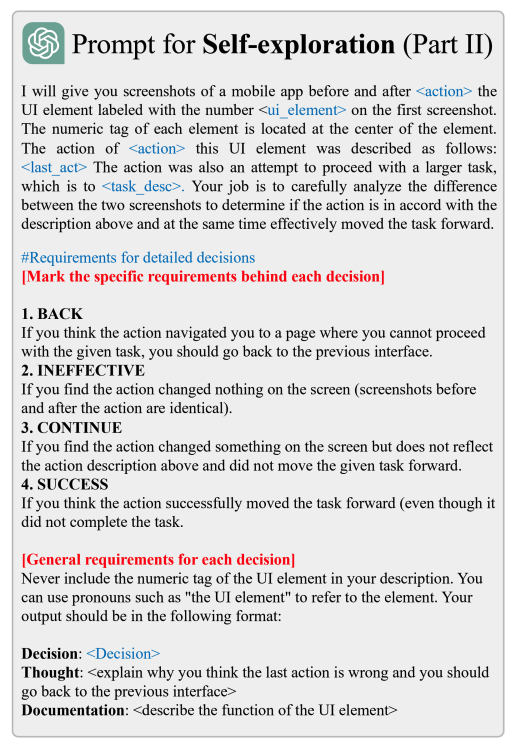
이 평가 결과는 다시 문서(JSON)로 기록되어 이후 few-shot learning의 레퍼런스로 사용된다.
즉, AppAgent는 “관찰 → 행동 → 평가”의 완전한 순환 구조를 통해 스스로 탐색하고 개선하는 셈이다.
여기서 우리는 AppAgent가 Chain-of-Thought를 ‘행동 단위’로 확장한 시스템이라는 것을 알 수 있다.
텍스트로 사고 과정을 설명하는 수준을 넘어, 그 사고 결과를 실제 터치·입력·스와이프 같은 물리적 행동으로 연결한다.
물론 여전히 XML 기반 입력과 제한된 인터페이스 등 기술적 한계가 존재하지만, 이 구조는 “스스로 생각하고, 실수하고, 수정하는” LLM기반 행동 Agent의 가능성을 명확히 보여준다.
정리하며..
사실 딥러닝, 머신러닝 모델을 사용하는 것도 아니고 단순히 LLM API만 사용해서 이러한 시스템을 구현하였기 때문에 성능에 대한 기본적인 한계는 존재할 것이다.
실제로 실행해보며 나도 이점을 느꼈다.
하지만 해당 시스템에서 사용한 프롬프트를 보고 전체적인 동작 코드를 뜯어보면서 사람처럼 배워서 동작을 수행하는 agent를 만들겠다는 인간 모방 에이전트를 LLM과 프롬프트만으로는 꽤 잘 구현하지 않았나 생각한다.
기술적으로 업그레이드 된 AppAgentX에 대한 논문도 최근에 나왔으니 참고해보면 좋을 것 같다.
AppAgentX: Evolving GUI Agents as Proficient Smartphone Users
AppAgentX: Evolving GUI Agents as Proficient Smartphone Users
appagentx.github.io
https://arxiv.org/abs/2503.02268
AppAgentX: Evolving GUI Agents as Proficient Smartphone Users
Recent advancements in Large Language Models (LLMs) have led to the development of intelligent LLM-based agents capable of interacting with graphical user interfaces (GUIs). These agents demonstrate strong reasoning and adaptability, enabling them to perfo
arxiv.org